# Backing up your world
### What should I backup?
1. **options.txt**
* This contains most menu, volume, and video settings.
2. **keys.txt**
* This contains all your keybinds.
3. **Any configs you changed inside** `packInstall/configs`
DON’T copy and paste the entire configs folder
Only backup the config files that you have *changed*. Copying the entire folder can corrupt your install if the configs are from a different pack version.
4. **A backup of your world(s)**
* See below.
5. **Journeymap Waypoints (optional)**
* These are located in `packinstall/journeymap/data/sp`. Copy the folder with the world you want to backup.
### Restoring a World Backup
Note
**SimpleBackups** is the backup mod included in the client and server versions of ATM, however it is not enabled by default in the server version of ATM. You must enable it yourself or use your server host’s built-in options.
By default, backups will save to `packInstall/simplebackups` with a zip file with your world’s name and a timestamp. You can configure how often it does a backup at `/configs/simplebackups-common.toml`.
**Default Interval**: Every 2 hours (120 minutes).
#### ATLauncher
1. Close out of your modpack.
2. Click `Open Folder` and open the `simplebackups` folder. [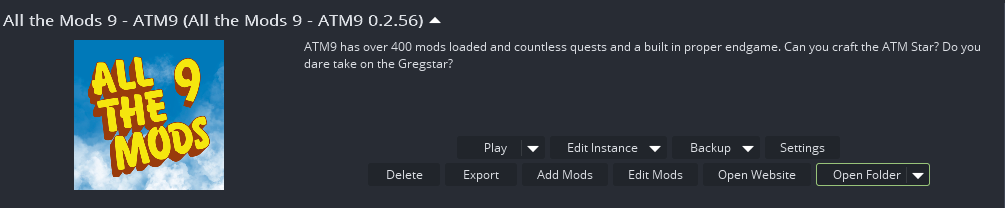](https://allthemods.github.io/alltheguides/help/img/backupsAT1.png)
3. **Copy** the zip file of the backup you want to restore **to your** `saves` **folder**.
4. Go to your `saves` folder and **delete** the world you want to restore
5. Open the zip file of the world you want to restore, then **drag** the folder inside, out to your `saves` folder.
If the restore was unsuccessful, you may need to try an older backup before the issue occurred
#### CurseForge
1. **Close** completely out of the modpack.
2. **Right-click** on the ATM icon in your CurseForge modpack screen and click `Open Folder` [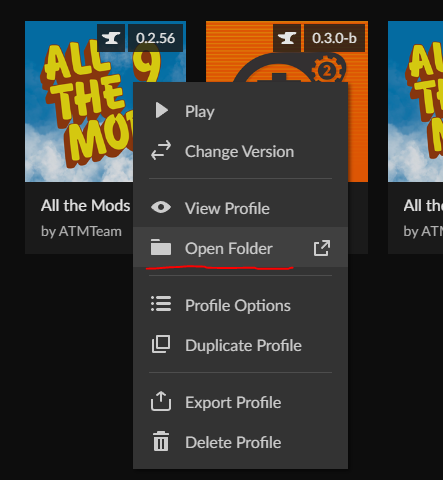](https://allthemods.github.io/alltheguides/help/img/backupsCF1.png)
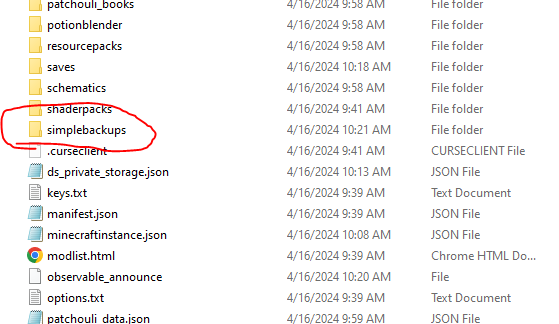
3. **Open** `simplebackups`\
[](https://allthemods.github.io/alltheguides/help/img/backupsCF2.png)
4. **Open** the zip file that you want to restore. (They’re labelled by the date created; the latest one is recommended.)
5. **Copy (Ctrl + C)** the folder inside, then return to your `saves` folder.
6. Back up your old world and **delete** it from this folder
7. **Paste (Ctrl + V)** the backup into `saves`
If the restore was unsuccessful, you may need to try an older backup before the issue occurred
> Simplebackups | [CurseForge](https://legacy.curseforge.com/minecraft/mc-mods/simple-backups)
---
# Agent Instructions: Querying This Documentation
If you need additional information that is not directly available in this page, you can query the documentation dynamically by asking a question.
Perform an HTTP GET request on the current page URL with the `ask` query parameter:
```
GET https://allthemods.gitbook.io/guides/servers/backing-up-your-world.md?ask=
```
The question should be specific, self-contained, and written in natural language.
The response will contain a direct answer to the question and relevant excerpts and sources from the documentation.
Use this mechanism when the answer is not explicitly present in the current page, you need clarification or additional context, or you want to retrieve related documentation sections.